Install the Hub
Everything in Gaminode starts from the Hub. You install it once, and it installs and updates the editor, the export platforms and Gaminode AI for you.
Windows
- Download
GaminodeHubSetup.exefrom the download page. - Run it. If Windows shows "Windows protected your PC", click More info, then Run anyway. This appears for apps from independent developers that aren't signed with a paid certificate yet.
- Accept the license and choose where to install. The default under Program Files is fine.
- Finish and let the installer open Gaminode Hub. A Start Menu entry is always created; a desktop icon is optional.
Linux
The Hub installs into your home folder, so it doesn't need sudo.
Terminaltar -xzf GaminodeHub_linux_x86_64.tar.gz
cd GaminodeHub
sh install.sh
gaminode-hub
If gaminode-hub isn't found, log out and back in once so ~/.local/bin is on your PATH. The Hub needs curl or wget, and unzip, which most desktop distributions already have.
Install the editor
- Sign in on the Account tab (see Sign in and the license).
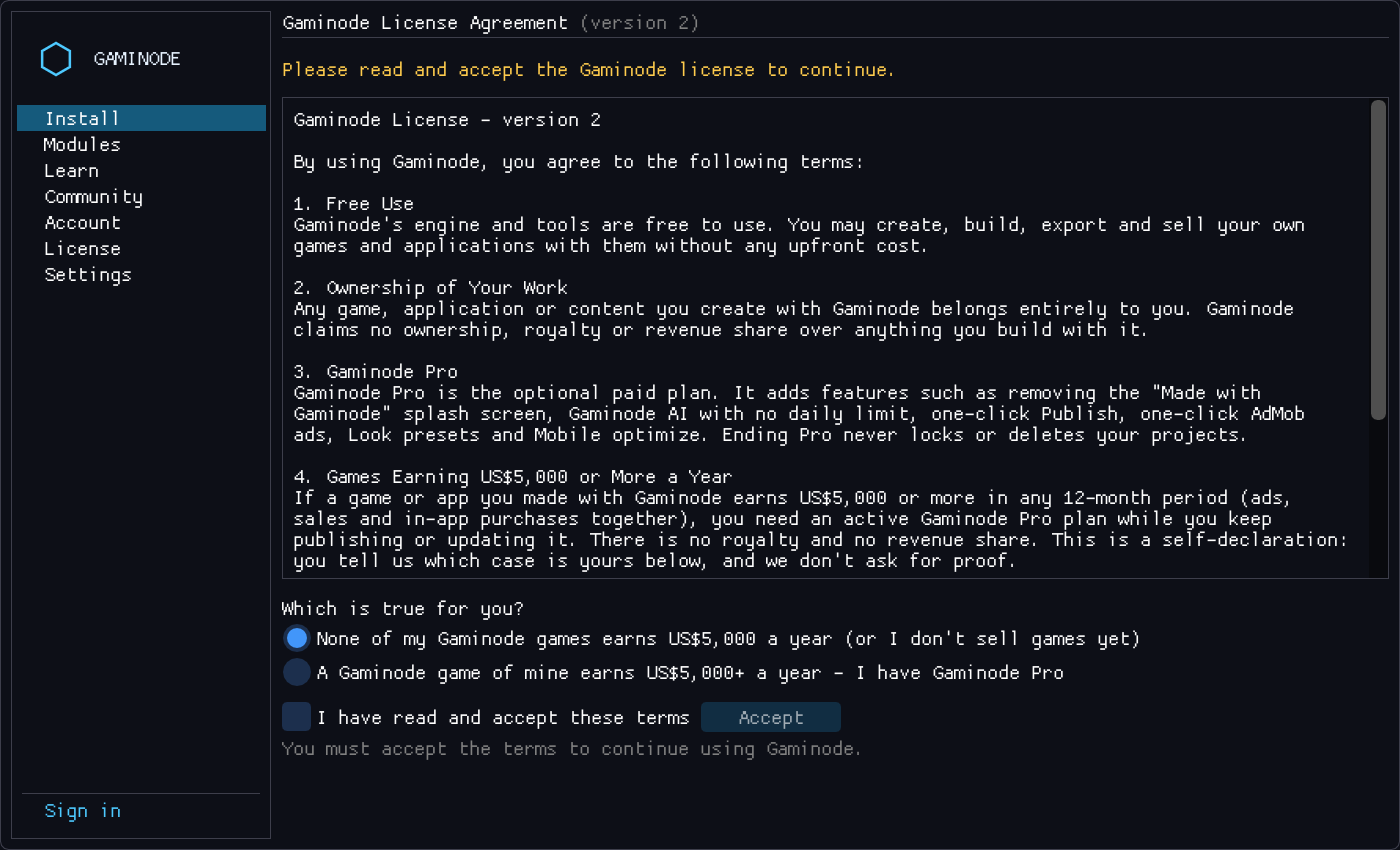
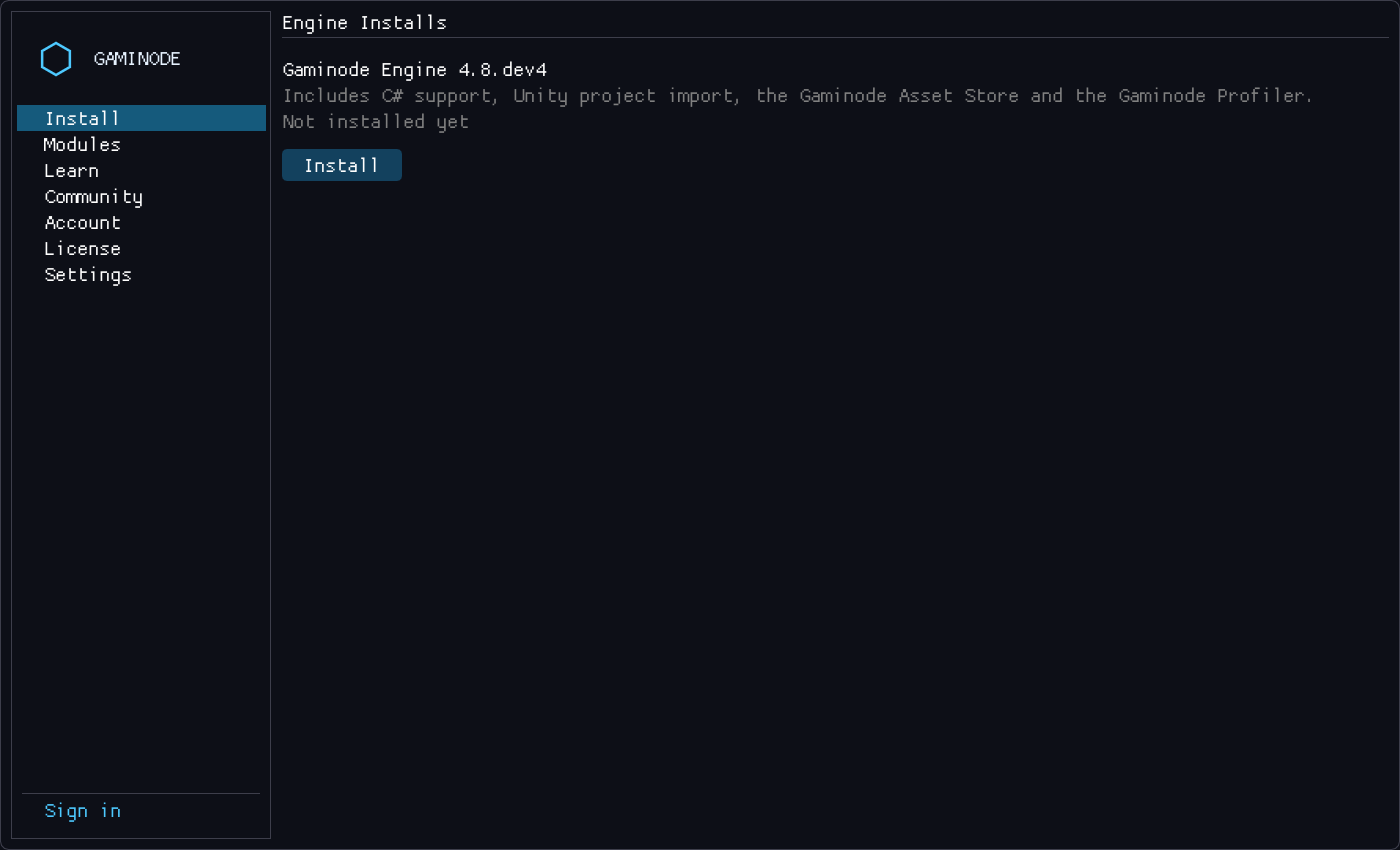
- Open the Install tab and click Install. The first time, the Hub shows the license; accept it to continue.
- The status changes from Downloading to Extracting to Installed. Every download is checked against a SHA-256 fingerprint before it is unpacked.
- Click Open. The editor starts as its own window, so you can close the Hub.
Each engine version installs into its own folder, so an update never touches the version you are using until it has finished. Your projects live in their own folders and are never changed by installing or updating the engine.
Add export platforms
Open the Modules tab and click Install next to each platform you want to publish to. You only download what you need.
| Platform | What you get |
|---|---|
| Android | APK for testing on your phone, and AAB for Google Play |
| Windows | A 64-bit .exe that runs without Gaminode installed |
| Web (HTML5) | A build that works on most static web hosts, no special server settings needed |
| Linux | A 64-bit Linux build |
Install Gaminode AI
- On the Modules tab, click Scan My System. The Hub checks memory, CPU cores and free disk space.
- Click Download AI Assistant. On Windows this opens the installer (about 1 GB, the model is included) in your browser. On Linux, unpack the archive and run
sh install.sh; it downloads the model the first time. - Open Gaminode AI. It uses your Hub sign-in automatically.
Updates
When a new Hub, engine or Gaminode AI is out, the Hub shows it: Update now for the Hub, Update on the Install tab for the engine, and Update on the Modules tab for the AI. Each download is checked before it is installed; a damaged or incomplete download is deleted and you can try again.
If something goes wrong
| You see | What to do |
|---|---|
| "This update isn't available yet" | The new version hasn't been published yet. Keep using the one you have. |
| "The download didn't finish, try again" | Your connection dropped. Click Retry. The broken file is removed for you. |
| Windows SmartScreen warning | Click More info, then Run anyway. |
Something wrong or missing on this page? Email gaminodeofficial@gmail.com.