The editor
The Gaminode editor is where you build, test and export games. This page shows where everything is, so the other pages make sense.
Project Manager
When the editor starts, it shows the Project Manager: your projects, and buttons to Create, Import (open an existing folder with a project.godot) or Scan a folder for projects. Games made by Gaminode AI are normal projects: import their folder once and they stay in the list.
Choosing a renderer
| Renderer | Use it for |
|---|---|
| Compatibility | Phone games, the web, older and integrated GPUs. The safest choice and what Gaminode AI uses. |
| Mobile | Phone games on newer devices that need more 3D effects |
| Forward+ | Desktop games with advanced 3D lighting on a dedicated GPU |
The main window
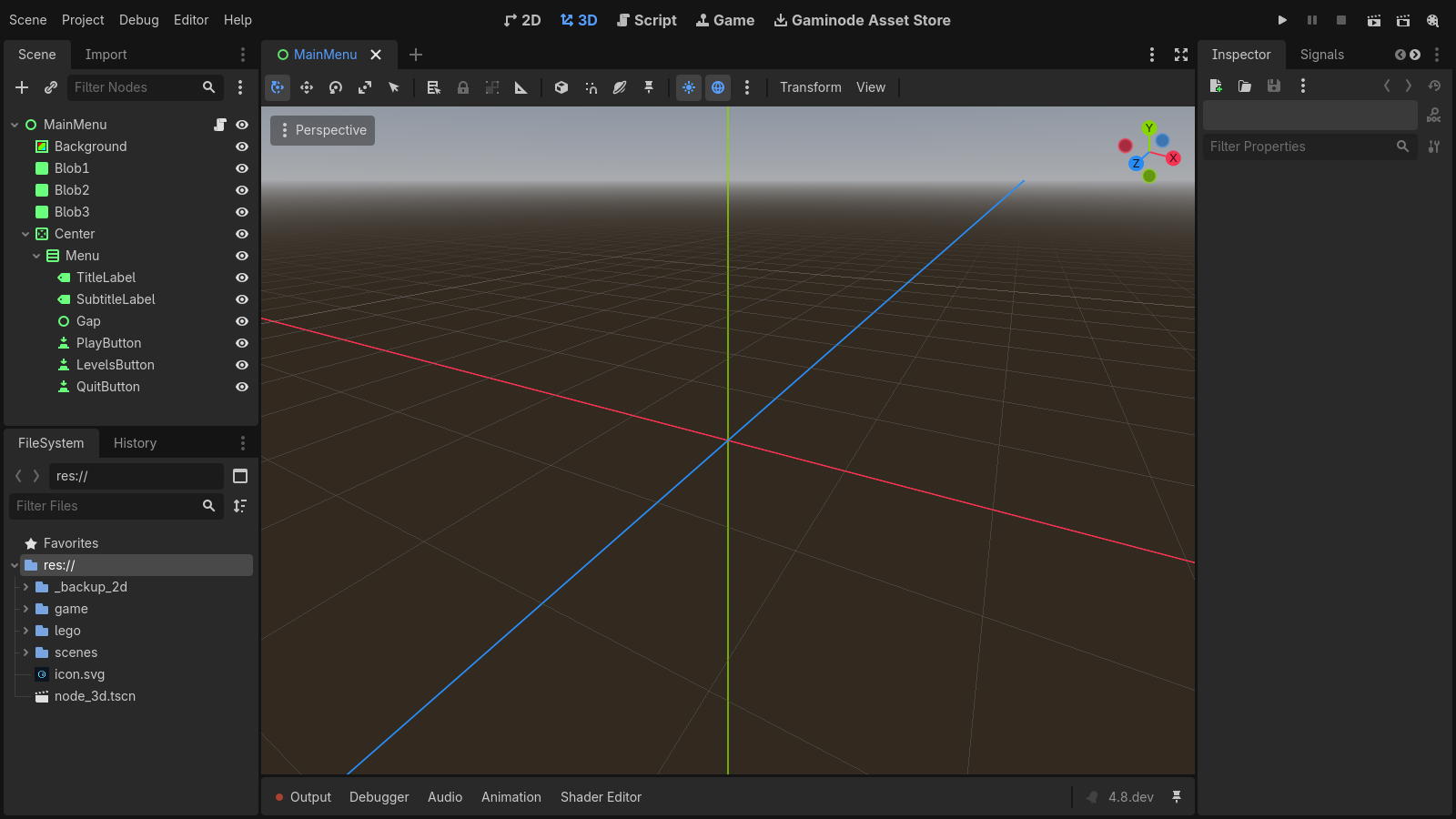
| Area | What it's for |
|---|---|
| Main screens (top centre) | Switch between 2D, 3D, Script, Game and the Gaminode Asset Store |
| Scene panel (top left) | The node tree of the open scene. Add nodes with +, drag to reparent, right-click for more |
| FileSystem (bottom left) | Every file in the project (res://). Drag files into the viewport or the Inspector |
| Viewport (centre) | Edit the scene: move, rotate and scale with the toolbar tools |
| Inspector (right) | Every setting of the selected node or resource |
| Bottom panel | Output, Debugger, Audio, Animation and Shader editors |
Running your game
| Key | Does |
|---|---|
| F5 | Runs the project from its main scene |
| F6 | Runs only the scene that's open |
| F8 | Stops the running game |
The Game screen can show the running game inside the editor, so you can pause it and click nodes to inspect them.
Gaminode's additions
- Project > Tools: Health Check, Optimizer, Auto Lightmap Setup, Stylized Render Setup, Cinematic Post-Processing, Import from Unity and Convert Unity C# Scripts. See the Tools section.
- Debugger > Gaminode Profiler: live performance with advice. See Debugging and performance.
- Gaminode AI link: when Gaminode AI is open, it can read the open scene and run the tools for you.
Shortcuts worth learning
| Keys | Does |
|---|---|
| Ctrl+A | Add a child node to the selected node |
| Ctrl+S | Save the scene |
| Ctrl+D | Duplicate the selected nodes |
| Ctrl+Z | Undo (every Gaminode tool can be undone too) |
| F | Frame the selected node in the viewport |
| W E R | Move, rotate, scale (3D) |
Something wrong or missing on this page? Email gaminodeofficial@gmail.com.