Your first 2D game by hand
In this tutorial you build a small game from an empty project: a player that moves left and right, rocks that fall from the sky, a score and a game-over. On the way you learn the four ideas every Gaminode game is made of: scenes, nodes, scripts and signals.
The four ideas
| Idea | What it means |
|---|---|
| Node | One building block that does one job: a sprite draws an image, a collision shape gives something a body, a timer counts time, a label shows text. |
| Scene | A tree of nodes saved as a .tscn file. A player is a scene, a rock is a scene, a level is a scene. Scenes can contain other scenes. |
| Script | Code attached to a node that gives it behaviour. Gaminode uses GDScript, a Python-like language made for games. |
| Signal | A message a node sends when something happens, like "a body entered me" or "the timer finished". Other nodes connect to it and react. |
1. Create the project
- Open the editor from the Hub. In the Project Manager, click Create.
- Name it
RockDodgeand pick an empty folder. - Choose the Compatibility renderer. It runs on the widest range of computers and phones.
- Click Create & Edit.
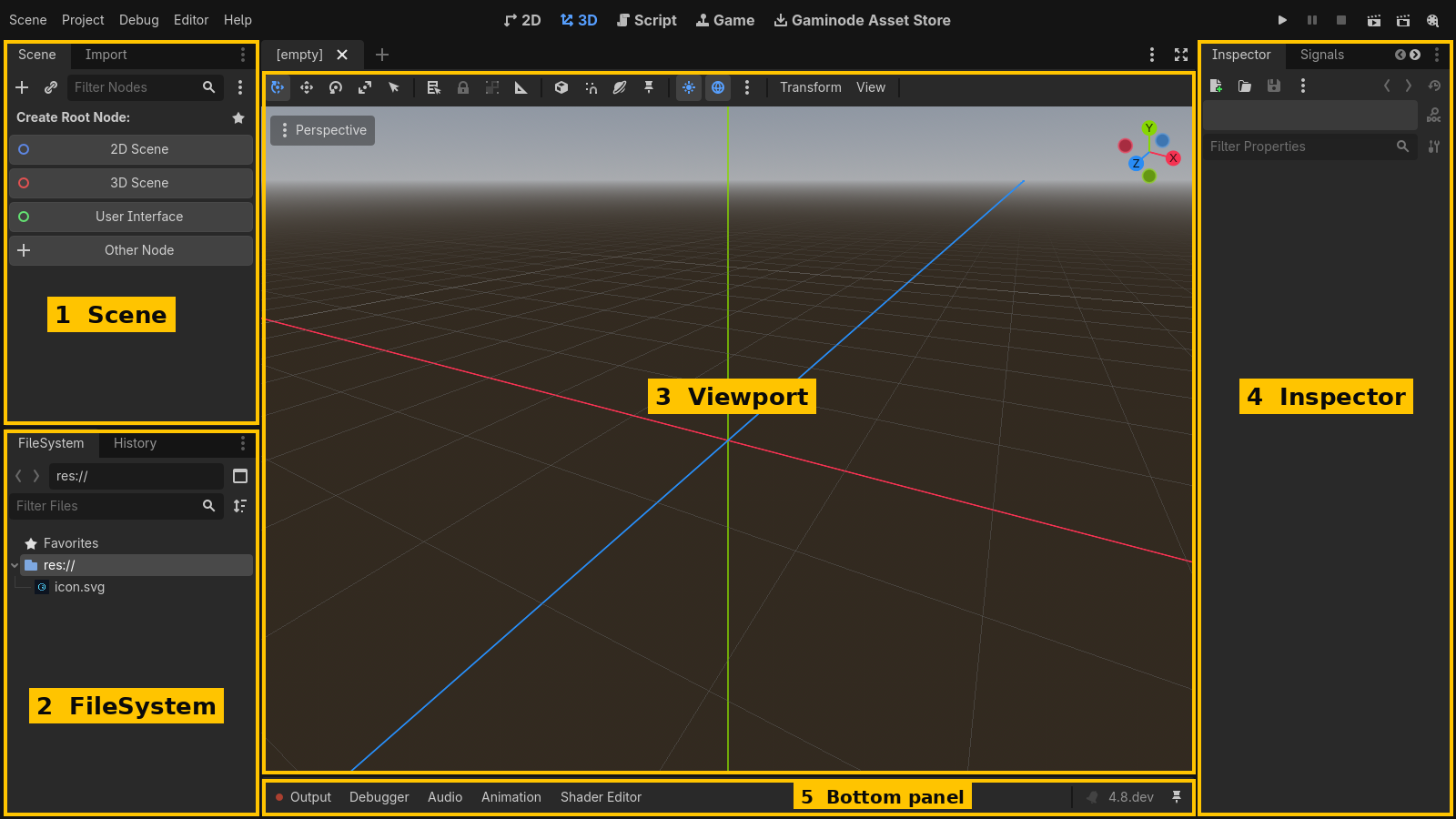
The editor has a Scene panel (the node tree, top left), a FileSystem panel (your files, bottom left), the viewport in the middle, and the Inspector (the selected node's settings, right).
2. Set up the controls
Instead of checking keys in code, give actions names. That way the same code works with the keyboard and on-screen buttons.
- Open Project > Project Settings > Input Map.
- Add an action
move_leftand press + to assign the A and Left keys. - Add
move_rightwith D and Right.
3. Make the player
- Click Scene > New Scene, then Other Node, and choose
CharacterBody2D. Rename itPlayer. - With Player selected, add a child
Sprite2D(click the + in the Scene panel). Dragicon.svgfrom FileSystem onto its Texture in the Inspector. The Gaminode icon is 1024 pixels, so set Transform > Scale to0.125to make it 128 pixels. - Add another child,
CollisionShape2D. In the Inspector, set Shape to a newRectangleShape2Dand resize it to cover the sprite. - Save the scene as
player.tscn.
Select Player, click the scroll icon to attach a script, keep the default name player.gd, and replace its contents with:
player.gdextends CharacterBody2D

@export var speed := 420.0

func _physics_process(delta: float) -> void:
	var dir := Input.get_axis("move_left", "move_right")
	velocity.x = dir * speed
	velocity.y = 0.0
	move_and_slide()
	# stay on the screen
	var width := get_viewport_rect().size.x
	position.x = clampf(position.x, 32.0, width - 32.0)
@export shows speed in the Inspector, so you can tune it without touching code. _physics_process runs 60 times a second.
4. Make a falling rock
- New scene with an
Area2Droot, renamedRock. - Add a
Sprite2D(useicon.svgagain, set Scale to0.125and Modulate to grey) and aCollisionShape2Dwith aCircleShape2D. - Save it as
rock.tscnand attach this script:
rock.gdextends Area2D

signal hit_player

@export var fall_speed := 260.0

func _ready() -> void:
	body_entered.connect(_on_body_entered)

func _process(delta: float) -> void:
	position.y += fall_speed * delta
	if position.y > get_viewport_rect().size.y + 64.0:
		queue_free()  # gone off the bottom, remove it

func _on_body_entered(body: Node) -> void:
	if body.name == "Player":
		hit_player.emit()
body_entered is a built-in signal of Area2D. The rock connects to it in _ready and sends its own signal, hit_player, when the player touches it.
5. Build the main scene
- New scene with a
Node2Droot namedMain. Save it asmain.tscn. - Drag
player.tscnfrom FileSystem into the viewport and place it near the bottom. - Add a
Timerchild namedRockTimer: set Wait Time to0.6and turn on Autostart. - Add a
Labelchild namedScorein the top-left corner.
Attach this script to Main:
main.gdextends Node2D

const ROCK := preload("res://rock.tscn")

var score := 0.0
var playing := true

func _ready() -> void:
	$RockTimer.timeout.connect(_spawn_rock)

func _process(delta: float) -> void:
	if playing:
		score += delta
		$Score.text = "Score: %d" % int(score)

func _spawn_rock() -> void:
	if not playing:
		return
	var rock := ROCK.instantiate()
	rock.position = Vector2(randf_range(32.0, get_viewport_rect().size.x - 32.0), -32.0)
	rock.fall_speed = 260.0 + score * 8.0  # faster as you survive longer
	rock.hit_player.connect(_game_over)
	add_child(rock)

func _game_over() -> void:
	if not playing:
		return
	playing = false
	$RockTimer.stop()
	$Player.set_physics_process(false)  # the player stops moving
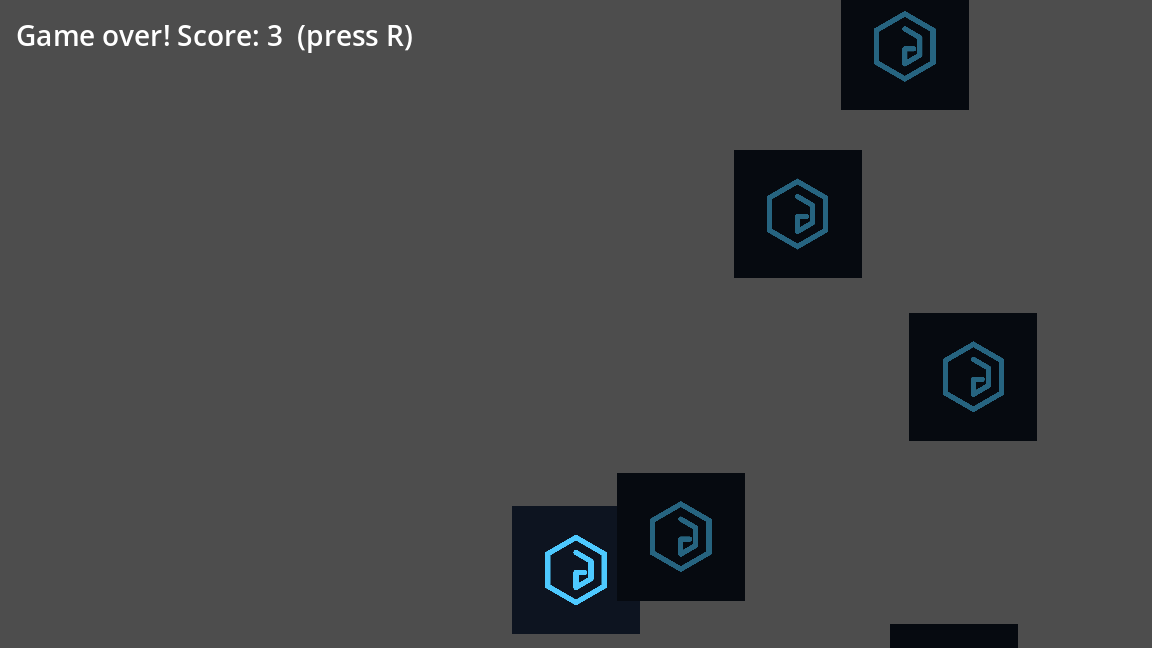
	$Score.text = "Game over! Score: %d  (press R)" % int(score)

func _unhandled_input(event: InputEvent) -> void:
	if not playing and event is InputEventKey and event.pressed and event.keycode == KEY_R:
		get_tree().reload_current_scene()
$Player works: $Name is short for get_node("Name"). It finds a child by the name shown in the Scene panel, so keep the names exactly as written here.6. Run it
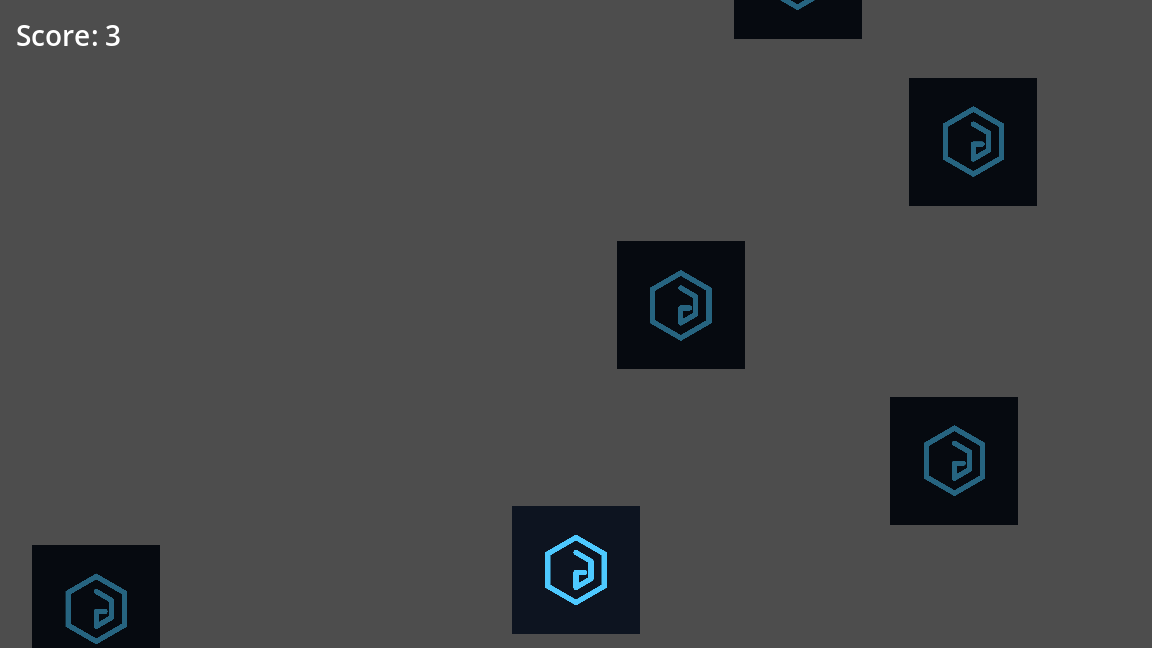
Press F5. The first time, the editor asks for a main scene: choose main.tscn. Move with the arrow keys and survive as long as you can.
7. Check it and go further
- Run Project > Tools > Gaminode: Health Check. It scans every scene and script, gives a score out of 100 and offers a Fix button for safe problems.
- Try Gaminode: Cinematic Post-Processing for a glowing, color-graded look in one click (it works in 2D too).
- Add a sound with an
AudioStreamPlayernode and call$Hit.play()in_game_over. - Export it for your phone: install Android on the Hub's Modules tab, then Project > Export.
Something wrong or missing on this page? Email gaminodeofficial@gmail.com.